 March 27, 2026
Data loss, theft of user accounts, leakage of confidential information – this is the nightmare of any web project owner. In practice, a significant portion of successful attacks on virtual servers occur precisely because administrators neglect basic security measures. But how can you prevent such incidents? What steps should you take to protect your VPS server? Let's take a closer look at the recommendations that will help you ensure the security of your project.
Preparation: An Important Rule That Will Preserve Access to Your Server
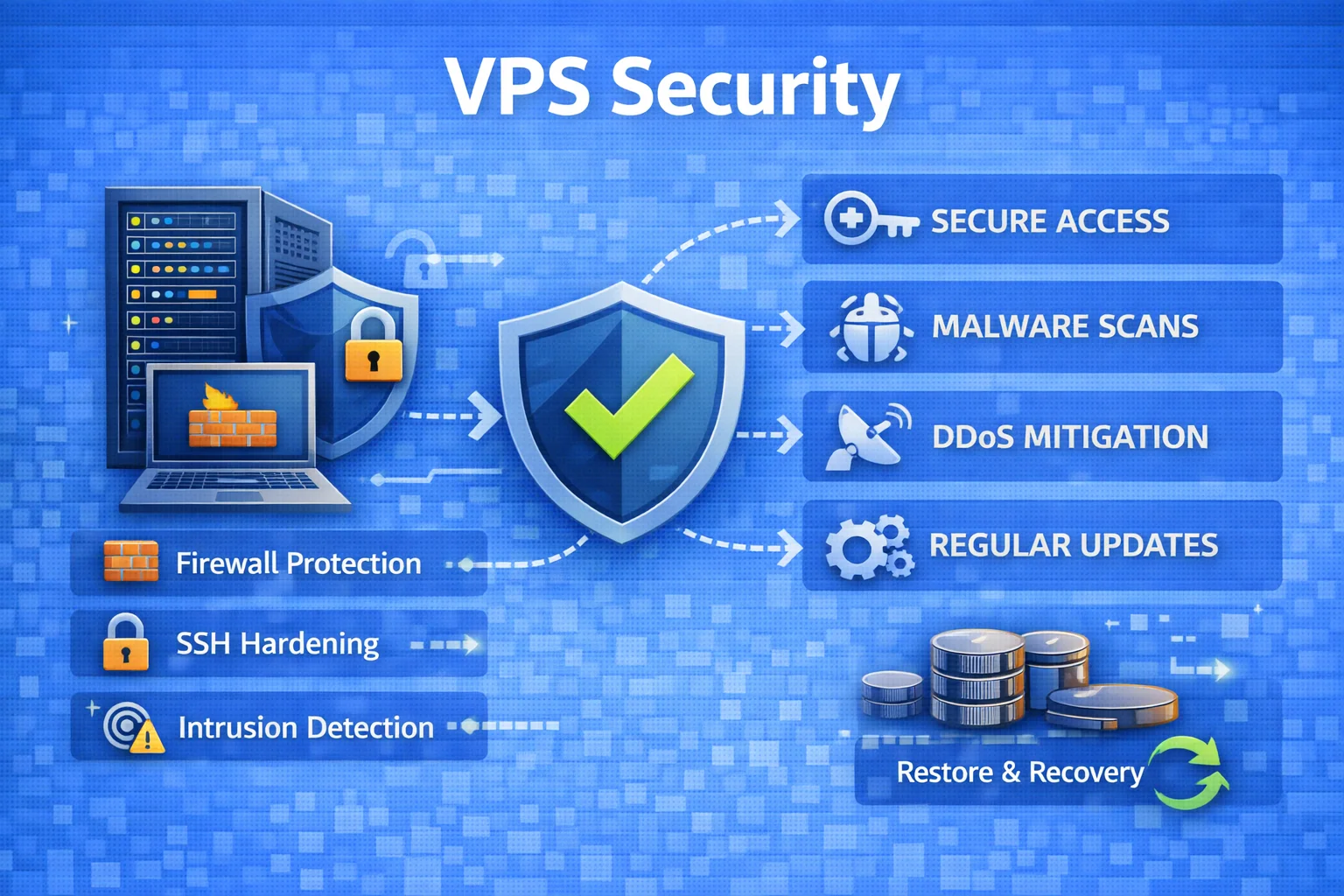
First of all, it is important to understand why a VPS specifically needs additional protection. Despite the reliability of modern cloud solutions, attackers are constantly improving their attack methods aimed at gaining access to users' servers. The main threats include credential brute-forcing, scanning of open ports, exploitation of software vulnerabilities, and DDoS attacks.
Before starting any VPS protection measures, you need to create a backup of important information. Regular backups will help you avoid data loss even in the event of a successful attack. Additionally, it is useful to have an alternative way to connect to the server in case the primary method becomes unavailable.
It is also important to take steps in advance to minimize the risks arising from network failures or configuration errors. For example, before changing firewall settings, take screenshots of the current configurations or create temporary rules that allow full access from your IP address until the settings have been thoroughly verified.
Step 1. Configuring Secure Access: SSH Key-Based Login Instead of Passwords
One of the most effective ways to protect your server is to use SSH keys instead of traditional passwords. SSH keys are a pair of cryptographically secure files consisting of a public and a private key. The public key is placed on the server, while the private key is stored locally on the user's computer. Access to the server is granted by matching the two parts of the key pair. If the private key matches the public key, the user gains access to the resource.
SSH keys are considered more reliable than passwords, as the latter have a number of disadvantages:
- High susceptibility to attacks. Attackers often crack passwords using brute force methods.
- Unreliability. Many users use weak or easily guessable passwords.
- Leakage. Hacking an account on one service can lead to the compromise of all accounts that use the same password.
Using SSH keys eliminates most of these problems:
- High resistance to brute force. The length and complexity of generated keys make it impossible to crack them through simple brute force.
- Additional protection for private keys. Even if the public key becomes available to an attacker, the private key remains protected by a passphrase.
- No risk of leakage. Since each private key is unique and tied to a single device, the risk of repeated attacks is significantly reduced.
Authentication using SSH keys works in the following order:
- The user creates a key pair.
- When attempting to connect, the client sends its identification information along with a signature created using the private key.
- The server verifies the signature using the public key stored on it.
- If the verification is successful, the user gains access to the server.
To take advantage of this security system, follow these steps:
- Generating an SSH key. For Linux/macOS, run the ssh-keygen command and choose a path to save the key. After that, simply copy the contents of the ~/.ssh/id_rsa.pub file. To generate keys in Windows, open PowerShell and run the command ssh-keygen -t ed25519 -C "[email protected]", then specify a path to save them.
- Copying SSH keys to the server. To start using the new authentication method, you need to place the public key on the target server. You can use the ssh-copy-id utility for automatic addition or do it manually. To do it manually, locate the id_rsa.pub file in Linux, or the .pub file in Windows. Open them and copy the contents, then paste them into the authorized_keys file on the connected remote server. After making the change, restart the SSH services.
- Configuring authentication using SSH keys. To finally switch to key-based authentication, you need to make some changes to the SSH configuration file /etc/ssh/sshd_config, enabling key-based authentication and disabling password authentication. After that, save the changes and restart the SSH service again.
- Additional SSH key protection. Always create a passphrase for your private key. Use long passphrases that include letters of different cases, numbers, and special characters. Consider using SSH agents to temporarily store keys in the computer's memory, reducing the need to constantly enter the passphrase.
Step 2. Disabling Redundant Authentication Methods: Blocking Password Login and Direct Root Access
These measures help minimize the likelihood of successful intrusion attempts by attackers and provide an additional layer of security.
When disabling these methods, it is important to verify the correctness of the settings before applying changes. Incorrect SSH configuration can lock you out of the server.
The root account has the highest level of privileges on Unix-like systems. Direct root access increases the potential security threat: a single malicious action by an attacker can cause a complete failure of the system or its components. Therefore, it is better to create a separate user with administrative privileges and perform administrative tasks through that user. It is necessary to restrict access to the root account. After this, attempts to log into the server directly as root will be rejected. Instead, the administrator will be able to connect as a regular user and elevate privileges using special commands.
Before completely disabling the old authentication method, make sure that the new authentication method works reliably. Try reconnecting to the server using the created account with an SSH key.
Step 3. Setting Up a Firewall: Configuring Traffic Filtering with UFW
One of the simple and convenient tools for implementing a firewall in Ubuntu and Debian environments is UFW – a simple wrapper for iptables that allows you to easily manage firewall rules. The main goals of setting up a firewall are: blocking malicious traffic, filtering incoming and outgoing connections, and minimizing the attack surface by opening only the necessary ports.
The advantages of this protection option with UFW include:
- Ease of configuration and management through straightforward commands;
- Integration with most Debian-based distributions;
- Supports filtering of both IPv4 and IPv6 simultaneously.
Typically, UFW is installed by default in most modern versions of Ubuntu and Debian. If the program is missing, you need to install it. After successful installation, you begin creating basic rules for traffic filtering. The recommended practice is to block all external connections by default and allow the necessary ports individually. In addition to basic filtering, you can further configure rules for specific needs:
- For specific IP addresses or address ranges;
- Generating alerts and activity logs;
- Defining individual security profiles for different network interfaces.
After all the rules are set, you should activate UFW.
Step 4. Adding an Automatic Blocking System: Protection Against Password Brute-Forcing (Fail2Ban)
One of the most common methods of hacking servers is the brute force attack. This is especially dangerous if a traditional password-based login method or weak credentials are used. Fail2Ban is an effective system for automatic monitoring and prevention of such attacks, responding quickly to suspicious events and temporarily blocking the IP addresses of offenders.
This tool monitors all event logs, detecting suspicious behavior (for example, frequent failed login attempts). Installing Fail2Ban is simple and takes just a few minutes. After that, you can either use a ready-made template or configure the following parameters manually:
- Filters for log analysis;
- Actions to be taken when a violation is detected (for example, blocking via iptables);
- The path to the log file containing login attempt information;
- The maximum number of failed login attempts that triggers a block;
- The duration of the block;
- The time interval during which failed attempts are counted.
For example, you can configure it so that after five failed login attempts within ten minutes, the IP address will be blocked for 15 minutes.
Step 5. Keeping the System Up to Date: Updates and Antivirus
Timely updates help protect against known vulnerabilities and maintain the operability of the entire infrastructure. Developers release patches and updates aimed at fixing identified issues. Ignoring updates can lead to the following consequences:
- System compromise;
- Performance problems;
- Slower request processing;
- Compatibility issues with dependent libraries and applications.
Regular software updates can be organized manually or automated. Before installing any software on a production server, it is better to test it on a separate test server first. This approach allows you to identify potential conflicts with other installed applications in advance and avoid disruptions in the production environment.
Particular caution should be exercised when installing software downloaded from public sources. Before deploying such software, verify its reliability and security. It is advisable to download programs only from trusted official manufacturer websites. Files obtained from untrusted sources may contain viruses or dangerous code fragments that can disrupt the virtual server's operation and compromise data confidentiality.
It is important to activate and properly configure a firewall and antivirus software on your server. This is especially relevant for Windows-based servers, where quality protection against external intrusion is essential. For Linux, there are two free programs: Maldet and ClamAV. Additionally, Chrootkit – a free tool focused on detecting rootkit viruses – can be a useful addition.
Even with active update mechanisms and antivirus systems in place, regular system auditing should not be overlooked. Situations may arise where an important service becomes unsupported or an unexpected compatibility issue appears. It is recommended to periodically review security reports, analyze system logs, and monitor notifications from your service providers.

What Else Can Be Done After Completing the Basic Level
Once the basic security measures have been implemented, the next stage involves advanced measures that will help strengthen server protection:
- Two-factor authentication;
- Using SELinux or AppArmor;
- Continuous monitoring and event logging;
- Implementing the principle of least privilege;
- VPN/TLS encryption for internal communication;
- Network analysis and segmentation;
- Data backup and replication.
What to Do If There Are Signs of Compromise (Hacking)
If signs of VPS compromise are detected, the following steps should be taken:
- Immediately cease any external interaction with the suspected server;
- Determine the extent of the breach and assess the potential damage;
- Collect and record all available information about the breach;
- Update passwords and access keys for all associated resources;
- Reinstall key applications and the operating system;
- Conduct a retrospective analysis to determine the cause of the incident and prevent a similar situation in the future.
Improving the security level of a VPS is an ongoing process that requires a comprehensive approach and attention to many details. However, a well-executed combination of the steps outlined above will allow you to create a highly effective security strategy that is resilient to most types of attacks and unforeseen circumstances.