 March 27, 2026
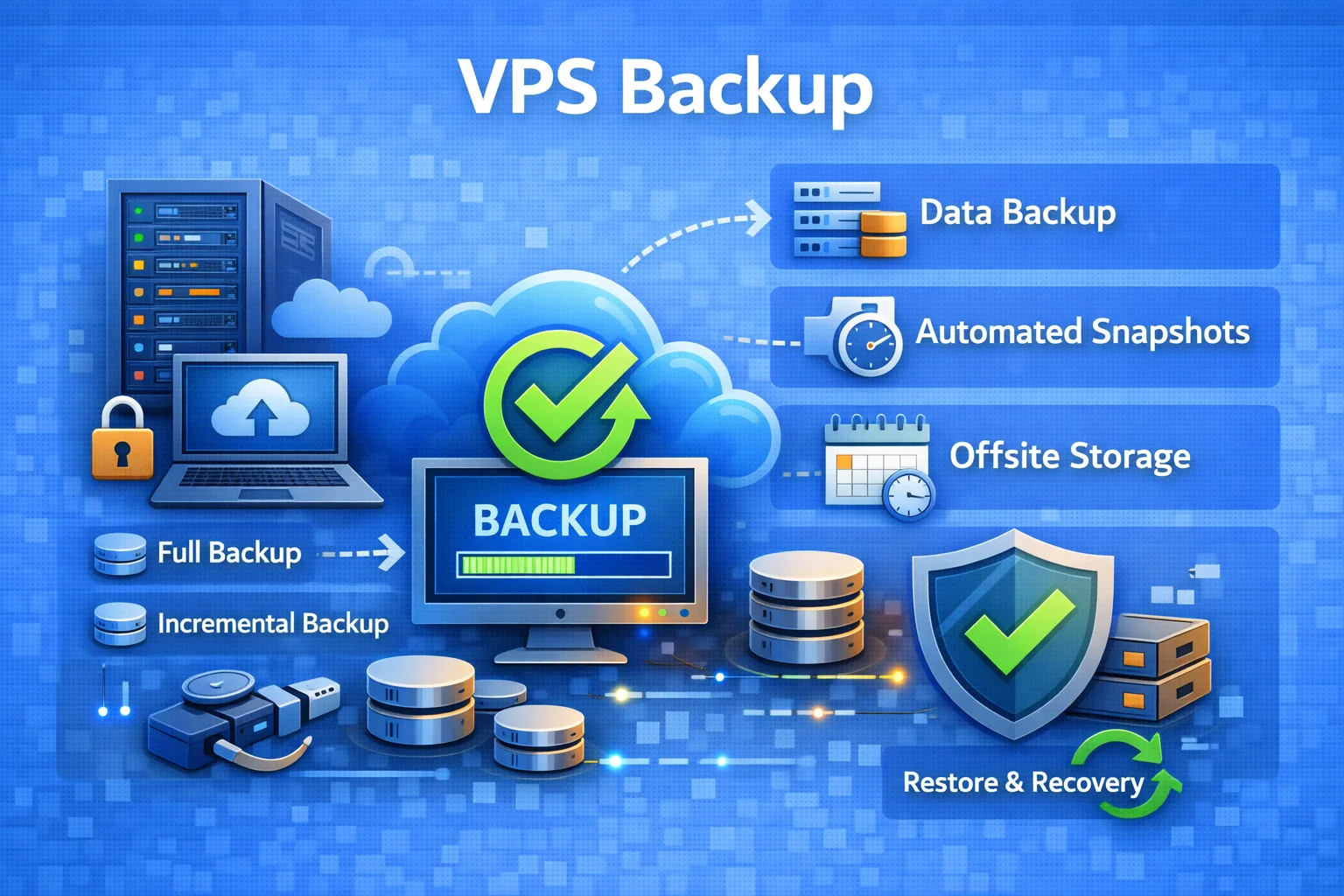
VPS backup is necessary to protect data. Typically, against its irreversible loss, which can occur as a result of hacks, human errors, or simple equipment failures.
Backup allows you to quickly restore operations, minimizing downtime. And it completely neutralizes data loss.
Only at first glance it seems that properly backing up a VPS is difficult. Moreover, very difficult. But in reality, everything is somewhat simpler. We have prepared a short guide – read on: we'll figure out what's what.
What Are the 3-2-1 Backup Rules and Why Is This the "Gold Standard" of Data Protection?
The 3-2-1 strategy is a popular approach for VPS backup.
It takes into account three types of risks at once: technical failures, human factors, and a potential real disaster (such as server room flooding, for example).
(3) Copies of Data
The first digit in the formula above means that there should always be at least three copies. The original is the first one. Then two others. They give you room for error: you can always restore the current version or roll back to an earlier one if a problem is not discovered immediately.
(2) Different Types of Media
The second point is to store copies on two different types of media.
Any "physical" option can fail, and often this happens for roughly similar reasons. In other words: if you store two copies on two hard drives stacked on top of each other, and a power surge occurs, both could fail at once.
So the options should be combined.
For example, you can keep one copy on a small SSD for quick and fast recovery, and the second on a regular HDD. The cloud is also not a bad option.
(1) Offsite Copy
Finally, an offsite copy. It is stored outside the primary location. This is a real lifesaver in case of force majeure.
Fire, flood, theft, even simple power outages – all of this can make local copies unavailable immediately.
For this reason, an offsite copy must be located in a different place. For example, in another building. Moreover, a "building" is the bare minimum. Some even transfer them to another region, and it cannot be said that this is completely pointless.
Choosing a Tool: Why rsync Is Ideal for Our Tasks
We have more or less sorted out the theory, but how do you actually back up servers in a real scenario? A VPS, for example?
Rsync can help with this. Its key feature is the so-called "delta encoding." That is, when the program is run again, it does not overwrite entire files. Instead, rsync analyzes which data blocks have changed since the last time and transfers only those.
This saves a lot of traffic, which is always beneficial.
Also, rsync works over SSH, which inherently means encryption is present. You won't have to worry about how to protect backups during the process. Rsync also allows you to configure exclusions, so if necessary, you can easily remove folders with cache or temporary files from the backup to avoid cluttering free space with junk.
Important: If you simply synchronize a folder from the server to an external disk using rsync -av /source /destination, files in the destination folder will not be deleted on their own — even if they have been removed from the server. By default, rsync only adds new data and updates changed files. Deletion on the receiving side is enabled separately, via the --delete flag. That is, a command like rsync -av --delete /source /destination will maintain an exact mirror of the source. This is convenient, but with a caveat: if a file was deleted by mistake, that deletion can also be replicated to the copy during the next synchronization.
However, rsync can not only mirror data but also help with versioned backups. For this, --link-dest is used: with it, you can create copies for each day, while unchanged files are not physically duplicated but are reused via hard links. As a result, storage space is used much more efficiently, and you have separate recovery points at your disposal. That is, if necessary, you can restore a file not only in its current state but also as it was a week or even a month ago.
Designing a 3-2-1 Architecture for Your Project
Let's start with the basics.
For a website, bot, or online store, the architecture should provide a fast RTO (Recovery Time Objective) and a reasonable RPO (Recovery Point Objective). As for the scheme, the main component is the VPS server itself.
There should also be a local backup. And an external one as well. There can be multiple types of media. At the first level, for example, a local disk; at the second level, a NAS or another disk; and at the third level, a remote server over SSH, which will provide offsite storage.
What to Copy: Preparing Data for Backup. What Not to Copy
Simply copying everything is a questionable idea, if not outright bad. It will lead to disk overfill and general clutter. So a targeted approach is needed. Below is a list of what always makes sense to back up:
- Code and project files – typically directories like /var/www or /home/user/project.
- Configurations – server configuration folders (/etc/nginx, /etc/apache2), startup scripts, and, of course, SSL certificates.
- Databases – copying database service files (for example, in /var/lib/mysql) "hot" is not allowed – you will almost certainly end up with a corrupted archive. Therefore, before synchronization, you should always create a dump. This can be done using mysqldump or pg_dump.
Now, what you can definitely do without:
- Virtual systems – folders like /proc, /sys, /dev, /run and others are created by the system at boot. Copying them is pointless.
- Junk and temporary files – cache directories (/var/cache) and temporary files (/tmp). Avoid these. Logs (/var/log) can be archived, but there is usually no need to do this often. If they are useful at all, it is mostly for analytics.
- Backups themselves – do not store backup copies inside the folder you are backing up. It will create a lot of clutter.
Writing an Automatic Backup Script with rsync
The script is written using rsync via the command line. To copy the contents of one folder to another, the -r flag is used.
For example: sudo rsync -r directory1/ directory2
Important: A note about the slash above – if it is present, only the files from "directory1" will be copied into the folder. If you omit the slash, the entire folder itself will be copied – along with all its contents.
To create "full" copies, the -a flag is more commonly used. It preserves not only the files themselves but also all their attributes, such as permissions.
For example: sudo rsync -a directory1/ directory2
By the way, you can also create copies over SSH – the command in this case would look something like this:
sudo rsync -avz --progress --delete -e "ssh -p 2026" [email protected]:~/backup_data
The -avz flags enable archive mode, verbose output, and compression during transfer. The --delete key handles synchronization – it removes files that no longer exist in the source. The -e "ssh -p 2026" construct indicates that the transfer is done over SSH, and [email protected] is simply the credentials and address of the storage server.
Important: As we mentioned above, cache and logs can (and should) be excluded from the backup. But we did not mention that rsync offers a specific key for this – namely, --exclude. It works well if you need to exclude one or two types of files. For example, --exclude *.png will exclude all images of that format from the backup.
Automating with a Schedule (cron)
Manually running backup tests is fine, but for real-world operation, automation will inevitably be needed – you can't do everything manually. The first and most important step for setting it up is to work on the client server. Here, you need to edit the /etc/rsyncd.conf configuration file.
It is filled out by specifying paths for logs and the process file, and then a separate data block is described. You also specify which folder will be copied (path = /var/log) and under which user (uid = root). The path to the password file (secrets file = /etc/rsyncd.scrt) is also specified here, where the credentials for the backup user will be stored.
Important: After creating the file, you must set its permissions to 0600 – meaning root access only.
On the server, you will need to write a script that can retrieve the data.
This is done by creating a file – /bin/server_backup.sh. It defines variables: the IP address of the source server (srv_ip), the module name (srv_dir=data), the user (srv_user=backup), and the local folder. The latter is where backups will be saved.
The rsync command in the script will use all these variables to connect to the source and download data to the /current/ folder. Additionally, it is worth setting up an incremental backup system: older versions of files will be stored in /increment/ with a date label.
Once the script is debugged and runs successfully manually, the only thing left is to add it to the schedule. To do this, open the scheduler editor (with the command sudo crontab -e) and add an entry – cron syntax is simple: five fields (minute, hour, day of month, month, day of week) followed by the command. For example, the entry 40 13 * * * /bin/server_backup.sh means the script will run every day at 13:40.
Recovery Testing
Everything is done, but you need to verify that it actually works. Here is how you can test a backup:
- Deploy an isolated test host with the same virtual platform/storage.
- Copy the selected backup to the test host.
- Perform the restoration of the image/files/disks.
- Start the VM and check the OS boot.
- At the application level, verify the services (primarily the server itself and the database).
- Validate the data – checksums, file counts, databases.
If everything is fine, the test machine can be deleted. If there are issues, document the errors and roll back.
Monitoring and Alerts: How to Know That a Backup Has Failed
The script can fail. There are many reasons for this, and there is no point in diving into all of them now. What is far more important is understanding how to detect such failures.
This is where continuous monitoring is extremely helpful. More specifically:
- Logging – it always makes sense to parse the /var/log/backup.log file. You should periodically check whether errors are appearing there.
- Metrics integration – it is highly desirable to integrate third-party monitoring systems. They should track the "freshness" of the backup and its size. The first is self-explanatory; as for the second, if the backup becomes suspiciously small, it may mean that the data simply did not get copied.
- Setting up alerts – configure notifications to be sent when a cron job fails. This can be done via email, or any other convenient channel. For critical projects, it is advisable to use several different channels.
Conclusion
The bottom line here is quite simple: VPS backup is not about "just in case," but about ensuring the normal and predictable operation of your project. Putting together a clear scheme once, understanding exactly what to copy, where to store the copies, and how to restore everything later – that is already half the battle. After that, all that remains is to ensure that the mechanism actually works. Because the mere fact of having a backup guarantees nothing. The only thing that provides a guarantee is a successful recovery – without panic, without haste, and without unpleasant surprises at the worst possible moment.