
 March 27, 2026
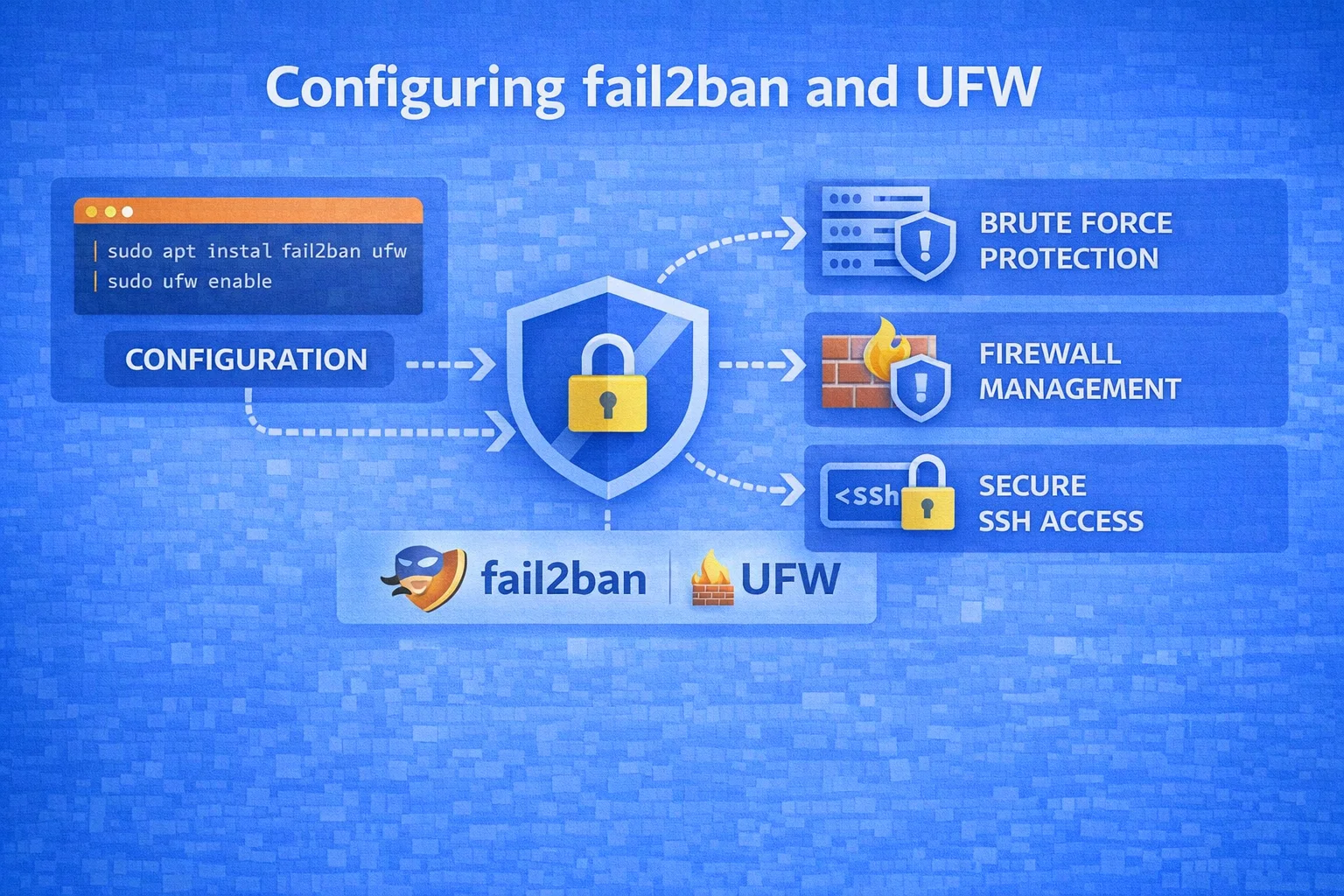
Every Linux server connected to the internet almost immediately begins to be subjected to automated scans and DDoS attacks. Even a small VPS can record hundreds of SSH connection attempts within the first few hours after launch. If you do not configure basic protection, attackers can guess your password and gain access to confidential data. Reliable server protection using Fail2ban and UFW will reduce network load and prevent port scanning and DDoS attacks.
What We Will Configure and How It Works
For basic protection of a Linux server against unauthorized access and automated attacks, two tools are most often used: UFW and Fail2ban. They perform different tasks but complement each other perfectly. UFW is responsible for filtering network traffic, while Fail2ban is responsible for automatically blocking suspicious IP addresses.
UFW – A Simple and Convenient Firewall
UFW, or Uncomplicated Firewall, is a utility for configuring and managing a firewall in Ubuntu and Debian distributions. Using this program, you can control incoming and outgoing network connections. In essence, the utility works like a filter: it checks each network request and decides whether to allow or block it based on set rules. The main principles of UFW operation are:
- Access rules. The administrator specifies which ports and services should be accessible from the outside (for example, SSH, HTTP, HTTPS).
- Blocking unnecessary traffic. All other connections that are not explicitly allowed are blocked.
- Outgoing connection control. If necessary, outgoing traffic can also be restricted.
- Logging. The firewall can record information about network connection attempts in system logs.
UFW forms the first level of server protection, preventing random or malicious connections from reaching system services.

Fail2ban – Automatic Attack Protection
Fail2ban is a powerful tool for protecting Linux servers that prevents brute-force attacks (password guessing) by monitoring logs (SSH, FTP, Apache) for suspicious activity. When it detects multiple failed login attempts, it automatically blocks the attacker's IP address for a specified period. Fail2ban works on the following principle:
- The system constantly analyzes log files (for example, /var/log/auth.log).
- Repeated authorization errors or other suspicious events are searched for in the logs.
- If the number of errors exceeds the set limit (for example, 5 attempts in 10 minutes), Fail2ban identifies the offender's IP address.
- This IP is automatically added to the firewall rules and blocked for a certain period (or permanently).
Fail2ban does not simply block traffic; it dynamically changes firewall rules, interacting specifically with UFW.
Preparation: What You Need to Know Before Starting
Even basic protection of a Linux server requires a careful approach, so it is better to ensure in advance that the system is properly prepared for configuration. First of all, the following factors must be taken into account:
- Administrator access to the server. To install and configure security tools, you need to have root access or user privileges that allow executing commands via sudo. Most administrative operations are performed with elevated privileges. If the user does not have administrator rights, it will be impossible to configure the firewall and blocking system.
- Active SSH access. In most cases, a Linux server is administered remotely via SSH. Before enabling the firewall, you need to ensure that the SSH service is working correctly. The user must know their current port (usually 22) in order not to lose access when enabling the firewall.
- System update. Before installing new security tools, it is recommended to update the system. This will allow you to install the latest versions of packages and prevent software failures. The standard command is typically used: sudo apt update && sudo apt upgrade.
Before configuring the firewall, you need to understand which services are running on the server and which ports they use. This is necessary to correctly set up access rules. You can view the list of active ports with the command: sudo ss -tulnp. If the server is already in use, it is recommended to save the current system settings before making changes. For example, you can make backup copies of configuration files: /etc/ufw/ and /etc/fail2ban/. This will allow you to quickly restore previous settings in case of an error.
Step 1. Quick UFW Configuration
Configuring UFW to protect a Linux server involves four main steps:
- Installation and verification. Make sure UFW is installed (sudo apt install ufw) and check its status (sudo ufw status).
- Setting default policies. If you need to block all incoming connections, enter: sudo ufw default deny incoming. If the user wants to allow all outgoing connections, they need to enter into the command line: sudo ufw default allow outgoing.
- Allowing SSH. It is very important to allow SSH before starting the program in order not to lose access to the server.
- Enabling UFW. Activate the firewall with the command: sudo ufw enable. The server will only accept connections on allowed ports.
UFW supports stable operation with IPv4 and IPv6. Before starting the program, the user must definitely ensure that they have allowed SSH, otherwise the connection to the server will be disconnected.
Step 2. Installing and Configuring Fail2ban
Installing and configuring Fail2ban to protect a Linux server involves the following steps:
- Installing the package. Update the repositories and install the package: sudo apt-get update && sudo apt-get install fail2ban.
- Creating a local configuration. Create a file /etc/fail2ban/jail.local based on jail.conf to avoid having settings overwritten during updates.
- Configuring ban parameters. Configure the main parameters: ban time (bantime), maximum number of attempts (maxretry), time interval for counting attempts (findtime).
- Starting and verifying. Restart the service (systemctl restart fail2ban) and check the status with the command: fail2ban-client status or fail2ban-client status sshd.
To enable SSH protection, you need to open the configuration file /etc/fail2ban/jail.local, find the [sshd] section, and set enabled = true. Then the user needs to restart the service with the command: systemctl restart fail2ban. This will reliably protect the server from password guessing.
How to Make Them Work Together: Integrating Fail2ban with UFW
For successful integration of Fail2ban with UFW, the following steps are required:
- Install the necessary packages. Install UFW and Fail2ban using the commands: sudo apt update && sudo apt install ufw fail2ban.
- Configure UFW. Allow SSH so as not to lose access to the server. In the command line, you need to specify: sudo ufw allow ssh. Then enable the firewall by specifying: sudo ufw enable.
- Create a local Fail2ban configuration. It is necessary to copy the default configuration file to avoid losing settings during updates: sudo cp /etc/fail2ban/jail.conf /etc/fail2ban/jail.local.
- Set the ban action to UFW. The user should open /etc/fail2ban/jail.local and in the [Default] section, either change or add the line: banaction = ufw.
- Enable SSH protection. The user must ensure that the SSH module is enabled in the same jail.local file. To check SSH, run: fail2ban-client status sshd.
- Restart the protection system. Execute the appropriate command: sudo systemctl restart fail2ban.
As soon as Fail2ban detects password brute-force attempts, it will automatically add the IP address to the UFW block list. You can check the status with the command: sudo ufw status.
Verification: Testing the Protection
After installing and configuring UFW and Fail2ban, you need to ensure that the protection actually works. The user must understand whether the firewall rules are being applied correctly, whether Fail2ban responds to suspicious activity, and whether attackers are being blocked. First, you need to verify that the UFW firewall is active and applying the rules. The command to check: sudo ufw status verbose. If UFW is disabled, you can activate it: sudo ufw enable. After this, the rules will begin to be applied immediately. To check blocked IPs, you need to run the command: sudo fail2ban-client status sshd. The simplest way to test Fail2ban is to perform several SSH login attempts or enter an incorrect password. If maxretry = 5 is set in the Fail2ban configuration, then after five failed attempts the IP should be blocked. Another proven method to check Linux server protection is log analysis. For quick and thorough log monitoring, use the command: sudo tail -f /var/log/fail2ban.log.
Useful Commands for Management (Cheat Sheet)
Among the main commands for managing Fail2ban and UFW are:
- Removing a rule: for UFW (sudo ufw delete allow 8080).
- Checking SSH protection status: for Fail2ban (sudo fail2ban-client status sshd).
- Viewing logs: for Fail2ban (sudo tail -f /var/log/fail2ban.log).
UFW and Fail2ban are considered simple and effective tools for protecting Linux servers. These utilities are excellent for automatically scanning ports and blocking malicious IP addresses. In the future, the system can be strengthened by configuring SSH keys, disabling root login, and updating outdated software.